Guide
Post run results to Slack
Connect a Slack channel and OKShip posts there when a run finishes: the verdict, how many goals passed, and a link to the run.
Before you start
- You need to be an owner of your team in OKShip. Other members can see the Slack section in Settings but can't change it.
- You need an incoming-webhook URL for the Slack channel you want to post to. You create it in Slack, and it starts with
https://hooks.slack.com/. Slack's own help explains how to add an incoming webhook to a channel.
Connect Slack
1. Open the Slack section in Settings
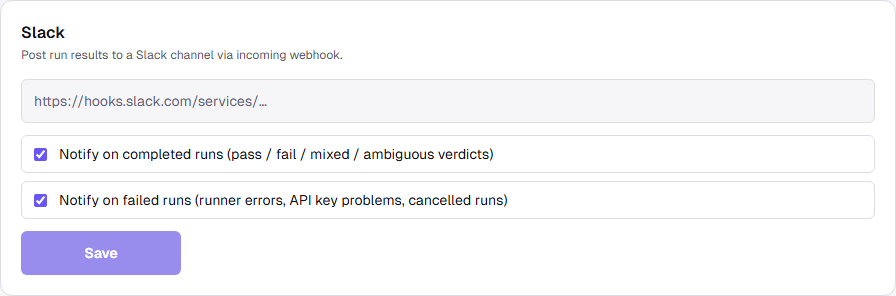
In OKShip, open Settings and scroll to the section called Slack.
2. Paste the webhook URL
Paste the URL from Slack into the field.
3. Choose which runs to post
Two switches decide what gets posted. Both start on.
- Notify on completed runs (pass / fail / mixed / ambiguous verdicts)
- Notify on failed runs (runner errors, API key problems, cancelled runs)
4. Save
Select Save. Before anything is saved, OKShip sends a test message to the channel:
OKShip is now connected to Slack ✅ — run notifications will appear here.
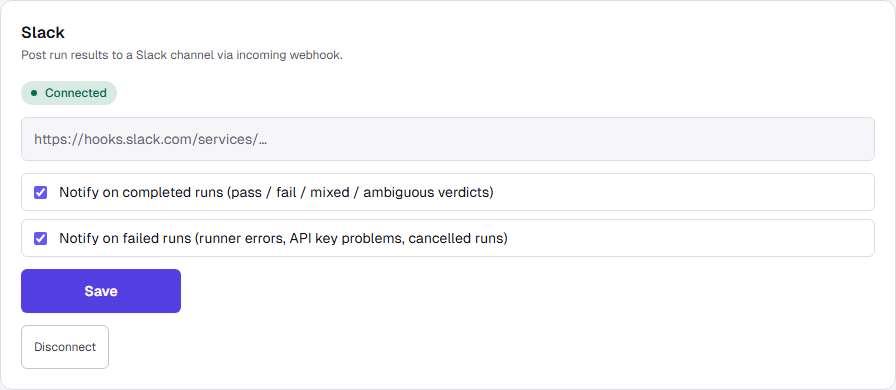
If Slack accepts it, the section shows Connected. If Slack doesn't, nothing is saved and you see what went wrong, so you can check the URL and try again.
What gets posted
Each post names the site that was checked.
- When a run finishes, the post gives the overall verdict, how many goals passed, failed or came back not sure, and a link to the report.
- If some goals were reached without any action on the page, the post says so under the counts, so the numbers aren't read as more than they are.
- When a run can't finish, the post says why in one line and links to the run.
The link opens the run in OKShip, so only people on your OKShip team can follow it. To share results with anyone else, send a proof link from the run.

Change or disconnect
To change which runs are posted, flip the switches, leave the URL field empty and select Save. Your saved URL stays as it is.
To post to a different channel, paste the new URL and select Save. OKShip sends the test message again first.
To stop posting, select Disconnect. This removes the saved URL and your switch choices; to connect again, paste a URL and choose again.
Security
See it on your own site
Point OKShip at your site, write what a user should be able to do, and get a report and a link you can send.
Try it for free